

This guide will help you prepare and use your custom addons for rendering on our platform. By the end of this guide, you’ll be able to upload your addons, and integrate them seamlessly into your render jobs. While we continue improving this workflow, some add-ons still require extra setup depending on how they store data or caches. We have successfully tested it with the following addons:Documentation Index
Fetch the complete documentation index at: https://www.renderjuice.com/docs/llms.txt
Use this file to discover all available pages before exploring further.
- PSA
- Flip Fluid
- Shakify
- Nishita Sky
- Geo Scatter
- Noise Nodes
Instructions
To use add-ons with Renderjuice, you need to zip your add-on folders and upload them to your Renderjuice account.Prepare Your Add-on
Before uploading your add-on, you need to make sure it’s working as expected locally.
- Ensure your add-on is working as expected locally, by rendering a frame. Set the sample size to lower values to speed this up.
- Once you’ve confirmed it’s working, zip the add-on folder from your local Blender add-ons or extensions directory and prepare to upload.
- Ensure that you don’t change the folder name when zipping it.
- Windows
- MacOS
- Linux
To show hidden files in File Explorer:Then navigate to:
Upload Your Add-on to Renderjuice
After you’ve zipped your add-on, you can upload it to Renderjuice.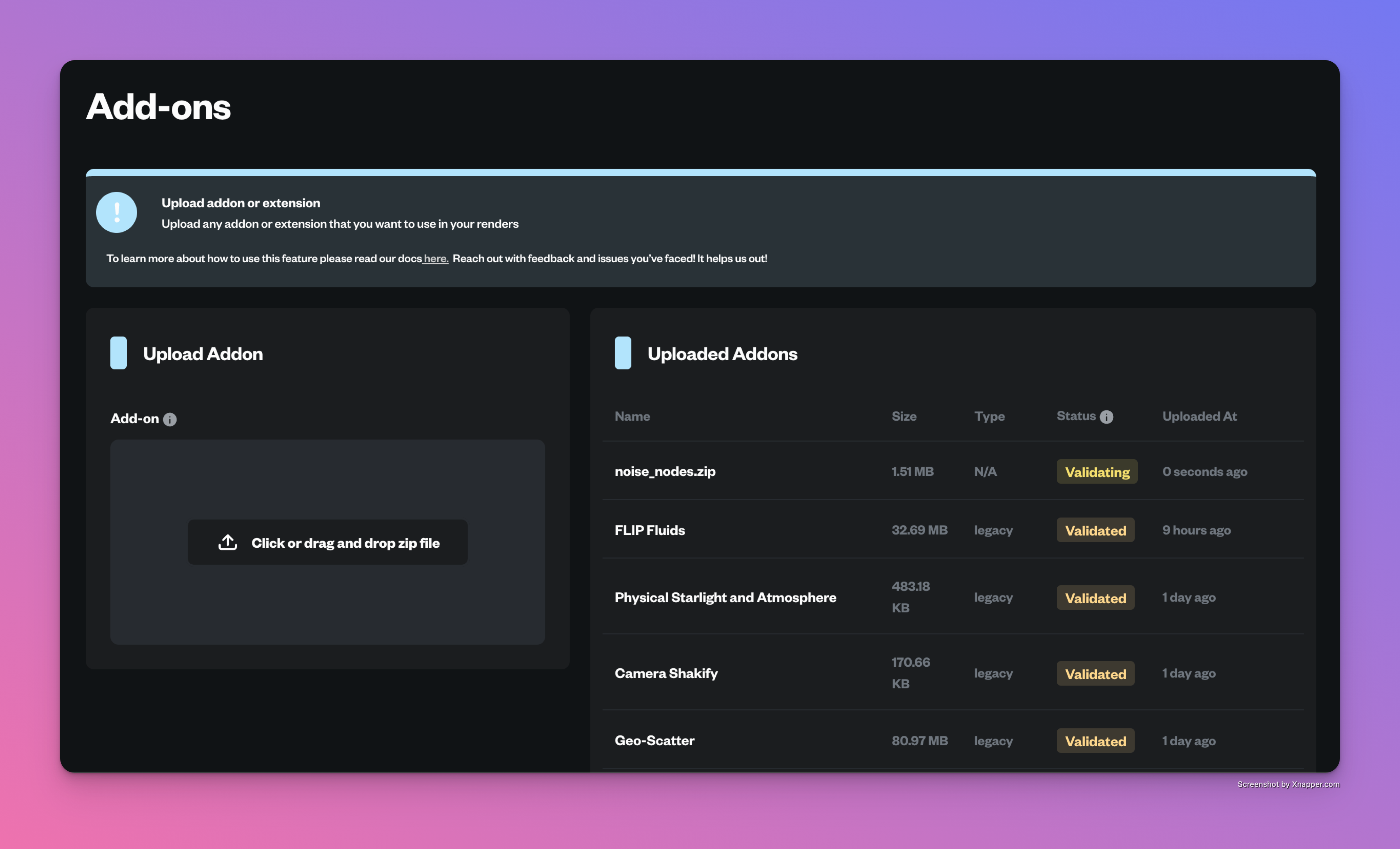
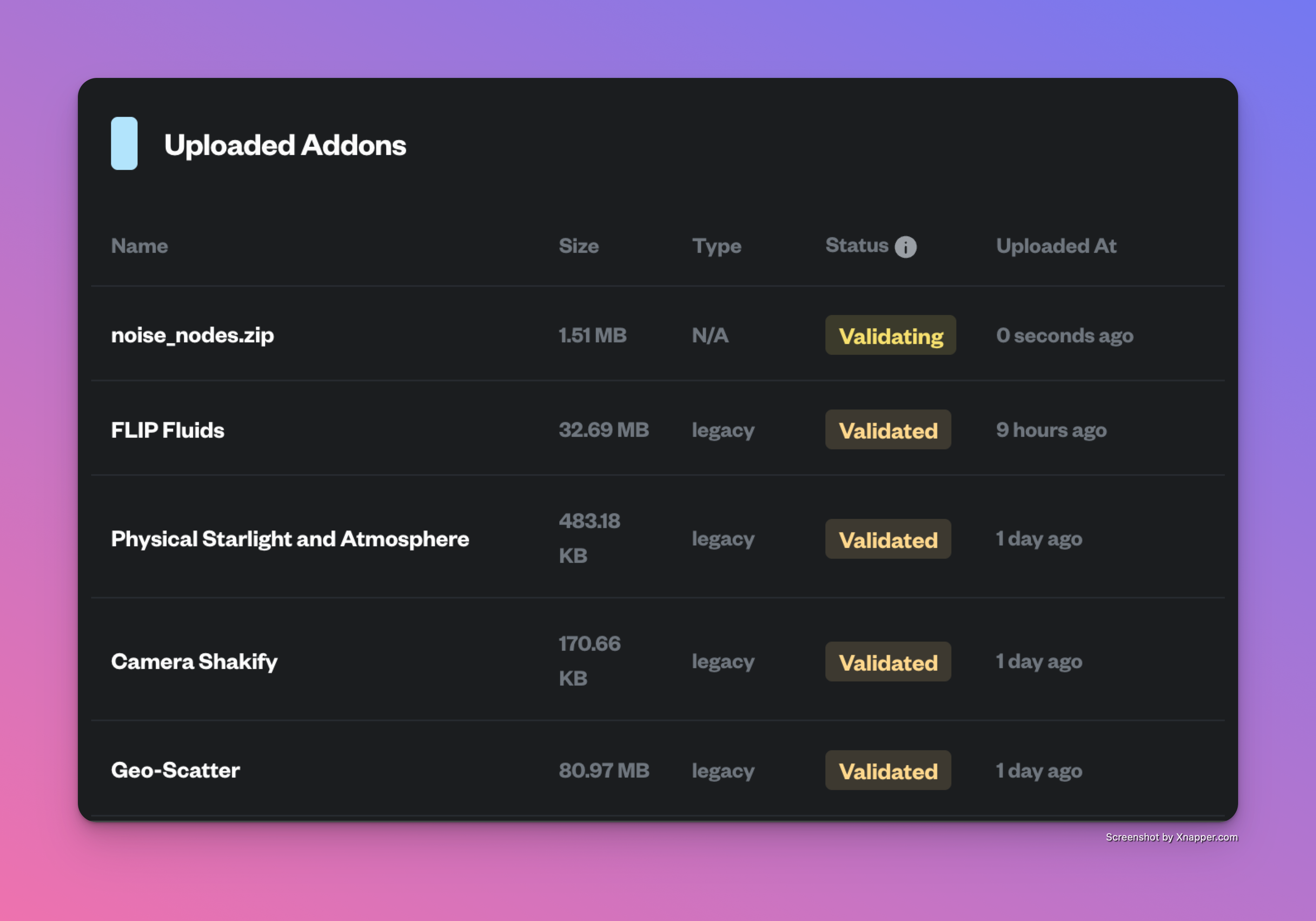
- Login to app.renderjuice.com and navigate to the Add-ons page.
- Drag and drop or click Upload to upload the addon zip file.
- Once uploaded, you can see your add-on in the list of uploaded add-ons in the Add-ons page. Wait for it to finish validating before using it in a render job.
Use uploaded Add-on in a Render Job
Great job! Now you can use your add-on in a render job.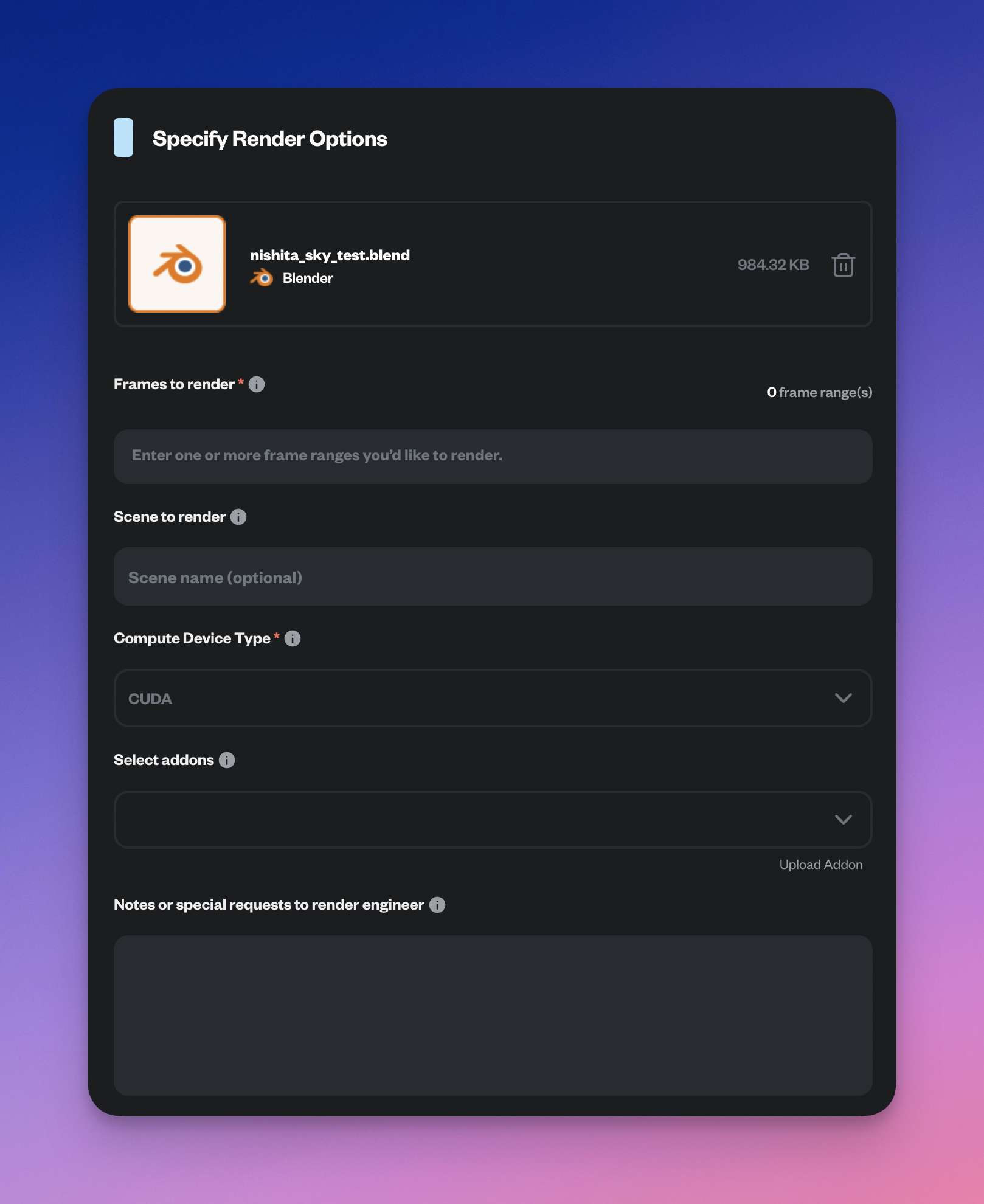
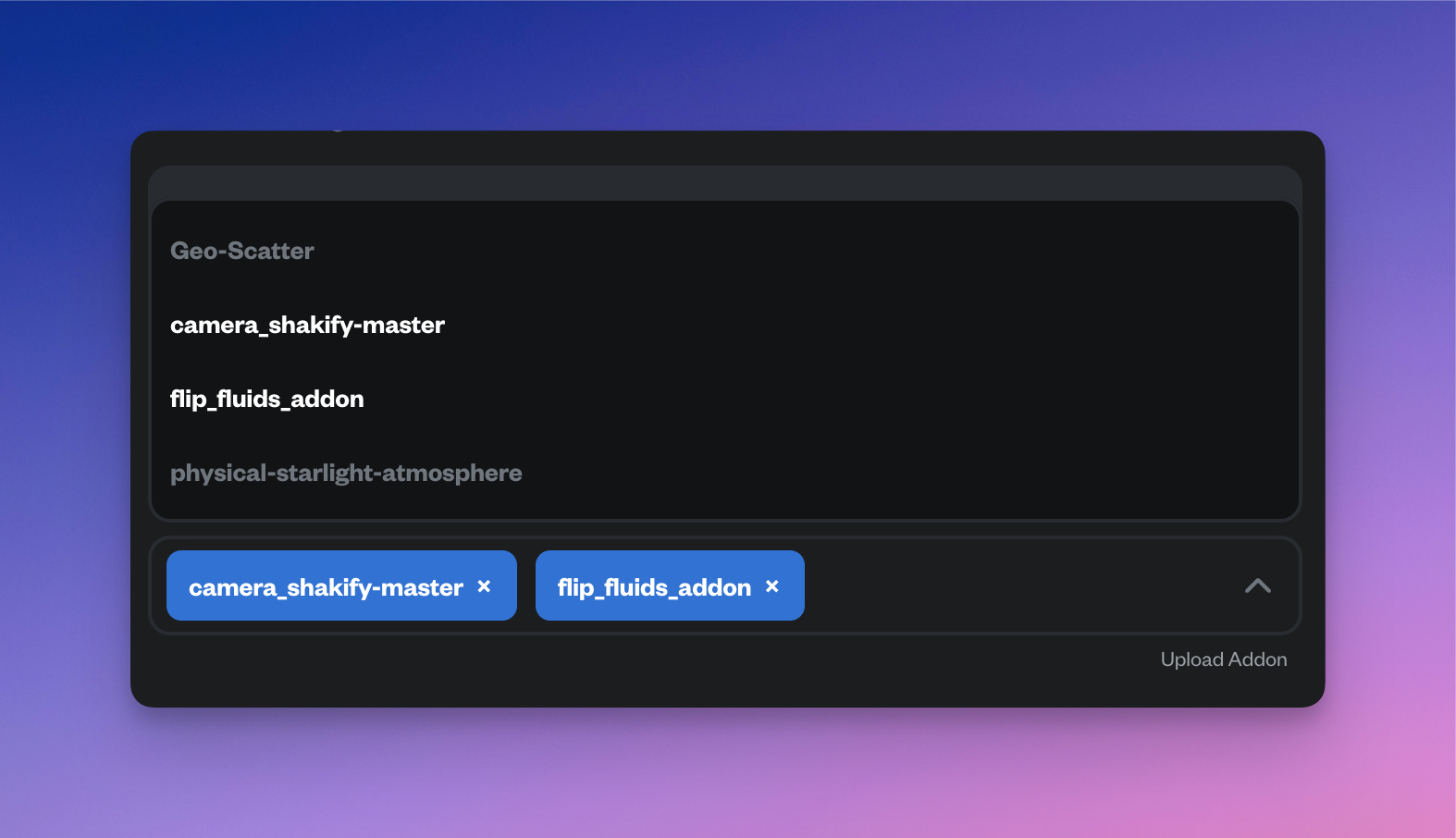
- Navigate to the Home page.
- Upload your blend file or choose one from recently uploaded.
- It will redirect you to the Configure Render page to set your render parameters.
- In the Add-ons section, you can select the add-on you uploaded to use.
- Click Continue to validate your scene and start your render 🎉.
What statuses mean
- Validating - Renderjuice is checking the archive structure and addon metadata.
- Validated - The add-on is ready to be selected in a render job.
- Failed - The archive could not be validated. Review the error in the Add-ons page, fix the archive, and upload it again.
Common mistakes
- Uploading the original installer or website download archive instead of the installed add-on folder from Blender.
- Renaming the add-on folder before zipping it.
- Trying to use the add-on before validation finishes.
- Assuming the add-on archive is enough when the scene also depends on baked caches or simulation data.
Important Notes
- Monitor the render to ensure your add-on is working as expected, if any issue detected cancel the render, to avoid wasting credits.
- For some addons e.g Flip Fluid, you need to bake your simulation locally and put the cache in the same zip as your
.blendfile. For more details see the Fluid Simulations guide.